TuteeTally User Guide
TuteeTally is a desktop app for managing student contacts for private tutors, optimized for use via a Command Line Interface (CLI) while still having the benefits of a Graphical User Interface (GUI). If you can type fast, TuteeTally can make student management much easier and faster than traditional GUI apps.
The system includes features for adding students, viewing student details, viewing summary statistics, and deleting student entries.
Note:
All commands are case-sensitive.
Quick start
- Ensure you have Java
11or above installed on your Computer.
Download the latest
tuteetally.jarfrom here.Save the file to your desired home folder that will serve as the main folder for TuteeTally.
Open a command terminal,
- For Windows users: Press
Win + R, typecmdorPowerShell, and pressEnter. - For MacOS users: Press
Cmd + Space, typeTerminal, and pressEnter. - For Linux users: Press
Ctrl + Alt + T.
- For Windows users: Press
Navigate into the folder where you saved
tuteetally.jar.
By default, it should be saved in yourDownloadsfolder.- For Windows users: Type
cd Downloads, and pressEnter. - For MacOS users: Type
cd ~/Downloads, and pressEnter. - For Linux users: Type
cd ~/Downloads, and pressEnter.
- For Windows users: Type
Type the command
java -jar tuteetally.jarto into the terminal to run the application. A GUI similar to the one below should appear in a few seconds. Note how the app contains some sample data.
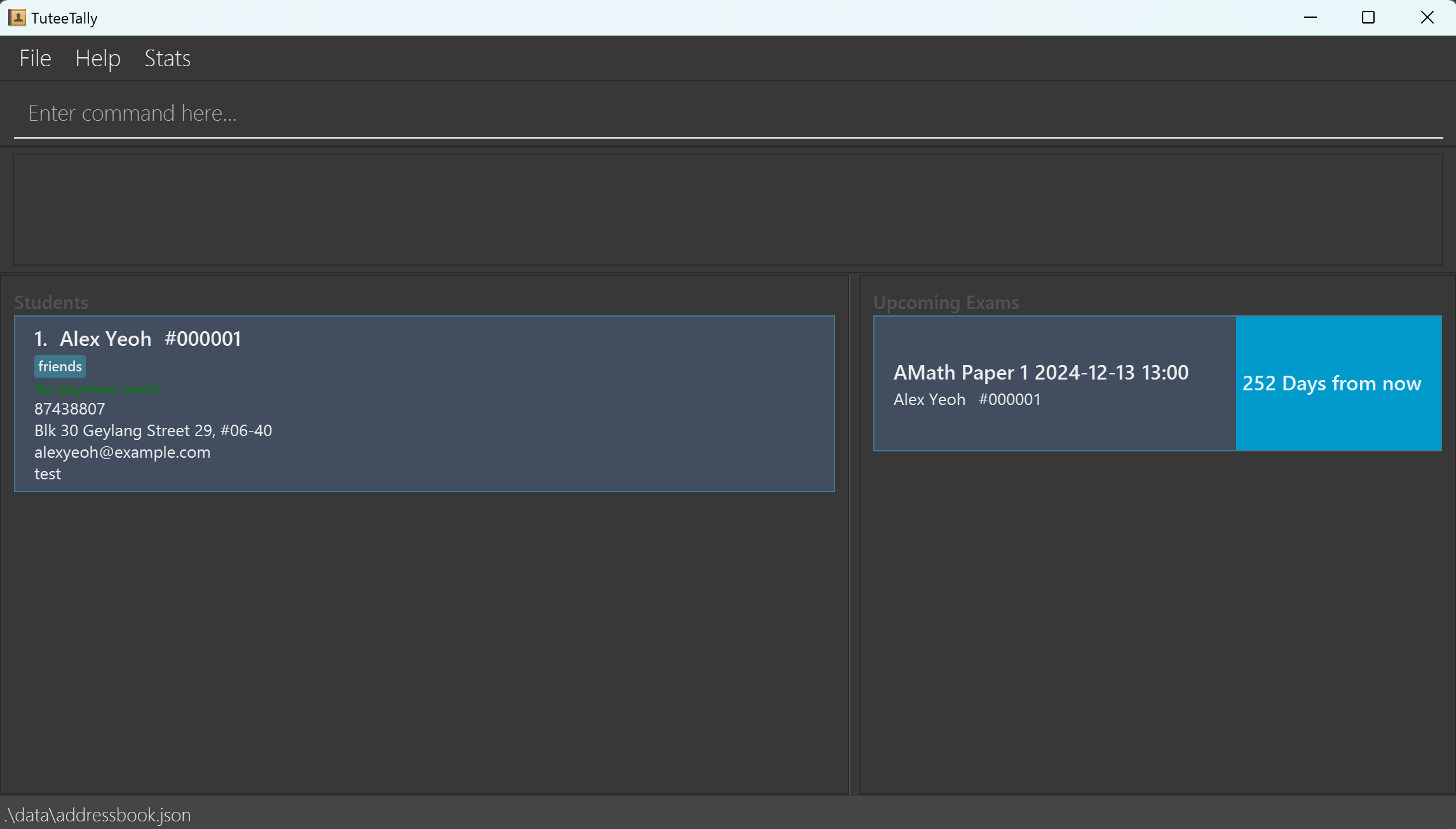
You can now type in any commands in the command box and press Enter to execute it. e.g. typing
helpand pressing Enter will open the help window.
Some example commands you can try:add- adding student to listdelete- deleting student from listview- viewing student overview or details or statisticsaddpayment- adding payment to studentmarkpayment- marking payment as paid for studentresetpayments- resetting payment for studentaddexam- adding exam to studentdeleteexam- deleting exam from studentlog- logging a session's content, hours, learning styles and comments (notes) for each session
Refer to the Features below for details of each command.
Glossary
| Term | Explanation |
|---|---|
| CLI | A command-line interface (CLI) is a text-based user interface used to interact with programs, in this case TuteeTally! |
| GUI | A graphical user interface (GUI) is a digital interface in which a user interacts with graphical components such as icons, buttons, and menus. |
| Payment | A Payment is the amount of money that a student owes to the tutor for the lessons that have been conducted. |
| Exam | An Exam is any assessment or Test that the tutor choose to keep track of a student |
| Index | The index of the student refers to the position of student counting from the top of current displayed list, with the first student being index 1 |
| Unique ID | The Unique ID of a student refers to a uniquely generated identity that is assigned to a student when he or she is added to TuteeTally. |
Features
Notes about the command format:
Command words such as
add,deleteetc. are case-sensitive.
e.g.AddADDaDDare invalid for the add commandWords in
{UPPER_CASE}are the parameters to be supplied by the user.
e.g. in-name/{NAME},NAMEis a parameter that can be used asadd -name John Doe.Parameters can be in any order.
e.g. if the command specifies-name {NAME} -address {ADDRESS},-address {ADDRESS} -name {NAME}is also acceptable.Prefixes for parameters need to have a space before the
-.
e.g.add -name Xiao Ming -address 13, Computing Dr, 117417 -email xiaoming@email.com -phone 88888888 -subject Mathis valid, butadd-name Xiao Ming-address 13, Computing Dr, 117417-email xiaoming@email.com-phone 88888888-subject Mathis not.All id inputs in commands labelled
{ID}can omit any leading 0s.
e.g.1,01,000000001are all valid id inputs for the ID#000001as leading 0s are ignored.All
{ID}are by default a positive integer of maximum 6 digits excluding leading 0s. Any ID that exceeds a positive 6 digit integer number (e.g. 1234567) may cause errors. However, 000000999999 is still a valid ID.The maximum number of students that can be stored in TuteeTally is 999999.
If you are using a PDF version of this document, be careful when copying and pasting commands that span multiple lines as space characters surrounding line-breaks may be omitted when copied over to the application.
Notes on Fields for the students
| Field | Prefix | Required | Caveats |
|---|---|---|---|
| Name | -name | Yes | Names should only contain alphanumeric characters and spaces, it cannot contain special characters. |
| Phone | -phone | Yes | Phone numbers should only contain numbers, and it should be at least 3 digits long There is no limit on the length of the phone number to accommodate worldwide phone numbers. |
-email | Yes | Emails does not require top level domain, it only requires @, for example admin@example. More info on valid email formatting can be found in this wikipedia article here. | |
| Address | -address | Yes | Addresses can take any values, and it should not be blank |
| Subject | -subject | Yes | Subjects can take any values, and it should not be blank. |
| Tag | t/ | No | Tags names should be alphanumeric and not contain any special characters. |
Adding a student: add
Adds a student's particulars into the address book.
Format: add -name {NAME} -phone {NUMBER} -email {EMAIL} -address {ADDRESS} -subject {SUBJECT} t/{tag}
Tip:
- If the addition is successful, the new student record will be shown at the bottom of the list.
Note:
- The
t/{tag}field is OPTIONAL and can be used to add tag(s) to the student record and no spaces are allowed fort/{tag}. - Currently, we don't accept name with special characters, in such cases it's advisable to use nicknames instead.
- There is currently no detection for duplicates, this is under planned enhancements.
Example:
add -name Xiao Ming -address 13, Computing Dr, 117417 -email xiaoming@email.com -phone 88888888 -subject Math
After entering the command, the interface will update as shown below:
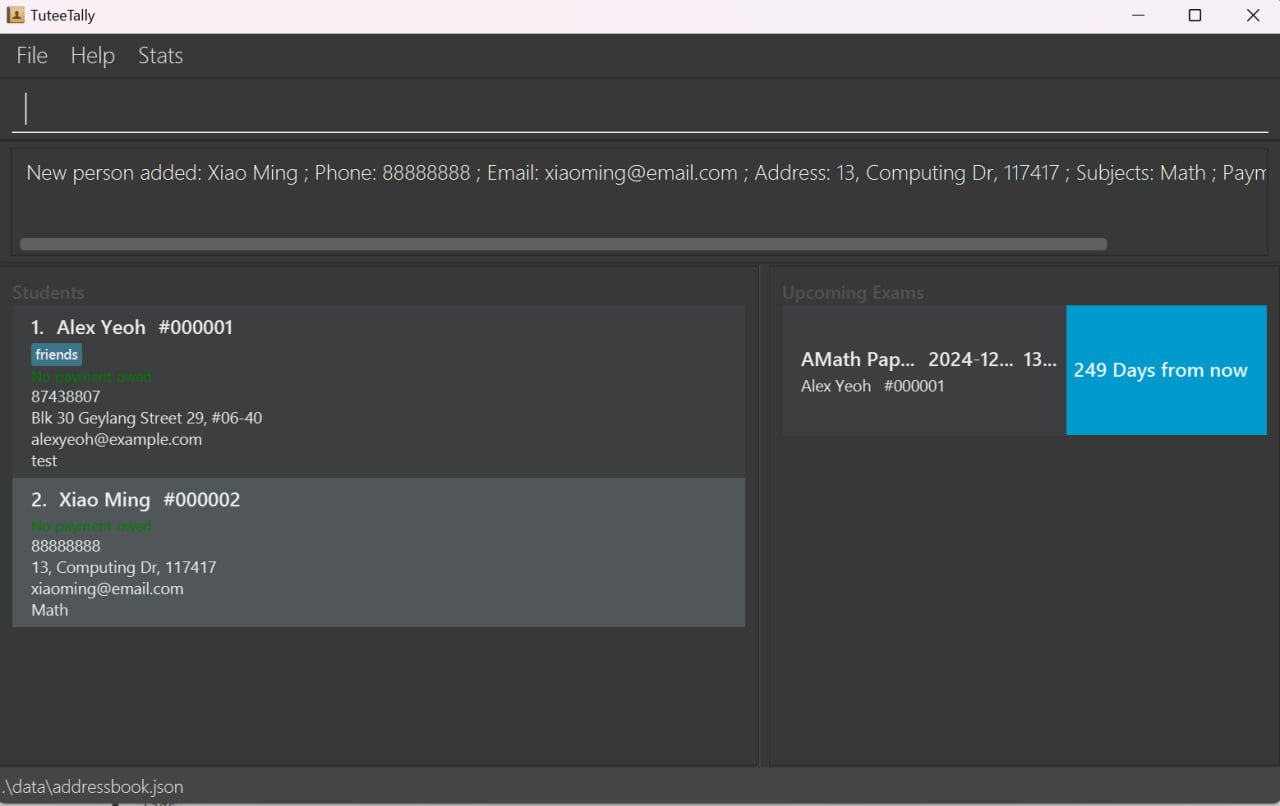 The display showing ALL the students after a new student gets added.
Tip:
- You can opt to drag the middle portion of the UI to vary the space allocated for student and exam details.
Editing a student by INDEX: edit
Edit the specific student detail from TuteeTally using the INDEX of the student.
The INDEX of the student refers to the position of student counting from the top of current displayed list, with the first student being index 1.
Parameters: INDEX (must be a positive integer) [-name NAME] [-phone PHONE] [-email EMAIL] [-address ADDRESS] [t/TAG]...
Editable Fields
NamePhoneEmailAddressTags
At least one editable fields must be present. Not all editable values need to be present at one time.
Format: edit {ID} -<Insert Field to Edit> {Value}
Example:
edit 1 -phone 91234567 -email johndoe@example.com -name JohnDoo
After entering the command, the interface will update as shown below:
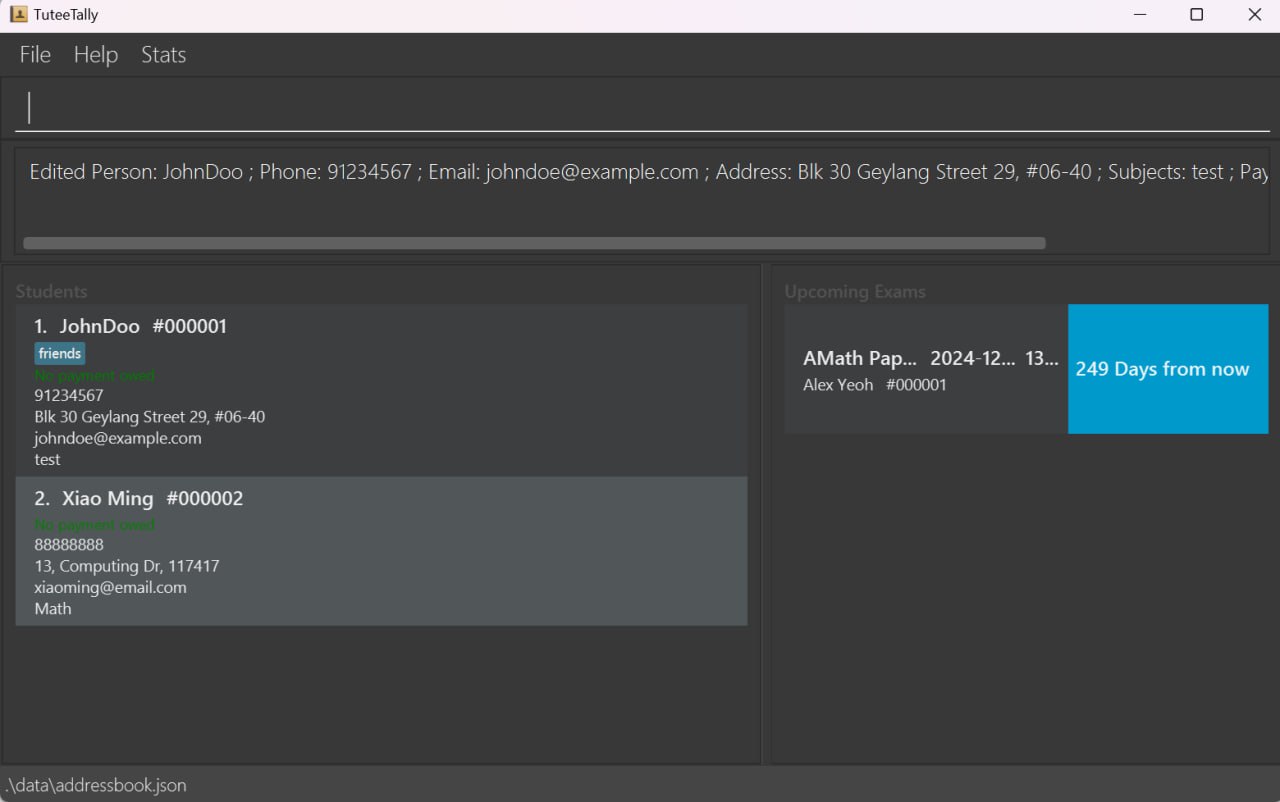 The display updates to show the student at INDEX 1 with their name and email edited.
Deleting of students by ID: delete
Deletes the specified student from the address book.
Format: delete -id {ID}
- Deletes the person at the specified
id.
Examples:
delete -id 000001ordelete -id 1deletes the student with the ID #000001
After entering the command, the interface will update as shown below:
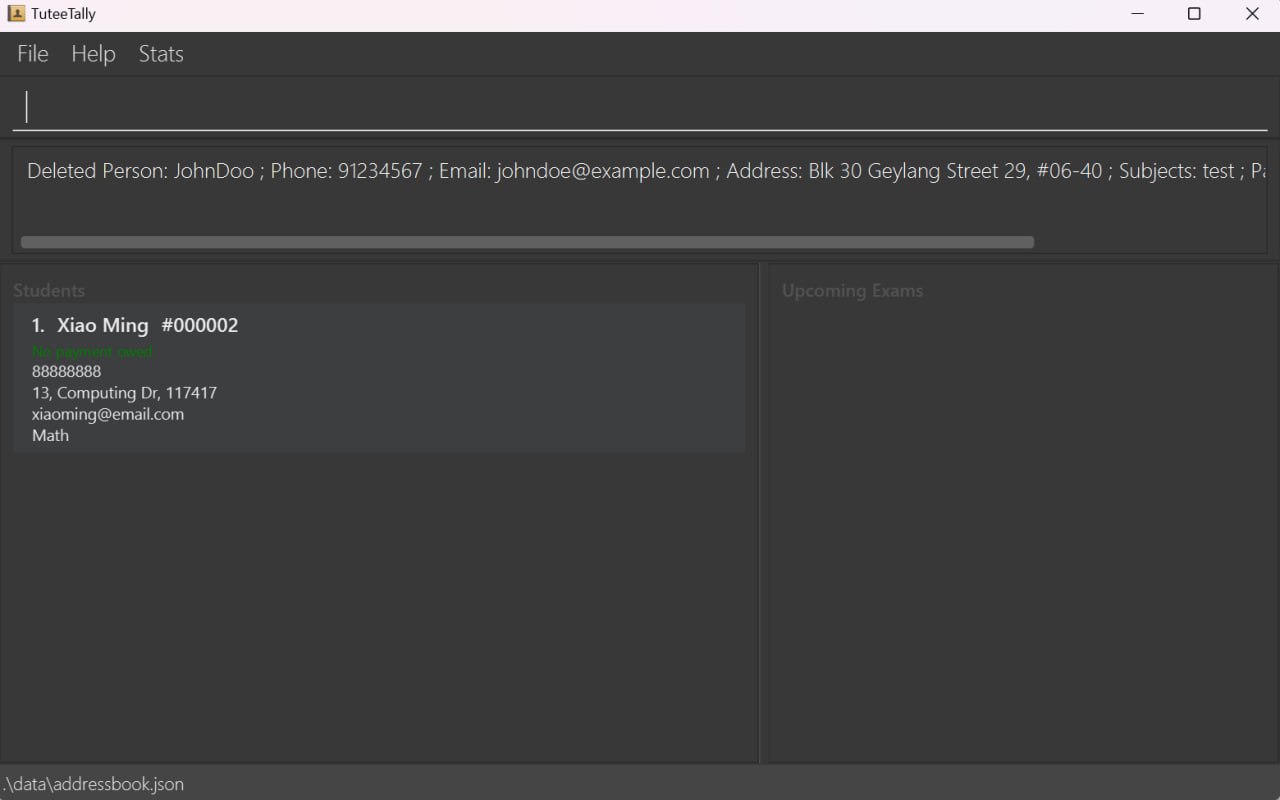 The display showing ALL the students after the student with the ID #000001 gets deleted.
Enhanced Students Profile Viewing: view
View the details of a student by searching for their id, name, or view all students. More specific details of different view commands are in the sections below.
For this feature, we have added more students in the list to demonstrate the different views available.
These student details can be found in the test.json file that we have included in the data folder.
Tip:
- To match the results shown in the illustrations within our User Guide, we recommend replacing the contents of the
data/tuteetally.jsonfile in your directory whereTuteeTally.jaris saved with the data from here. - This will ensure your outputs align with the examples provided in our guide.
View student statistics: view -stats
- This would display the following in a pop-up window
- the total number of students
- the total amount owed by students (Currently shows the exact amount)
- the number of upcoming exams in following 1-month period (from today up to the same day of the next month)
Tip:
- Use this feature to track the total amount of students you're teaching, how much is owed by all of them and how plan your schedule based on the number of upcoming exams that will come in the next month
Press F2 on the keyboard to access the stats view or type the below commands
Format 1: view -statistics
Format 2: view -stats
After entering the command, the interface will update as shown below:
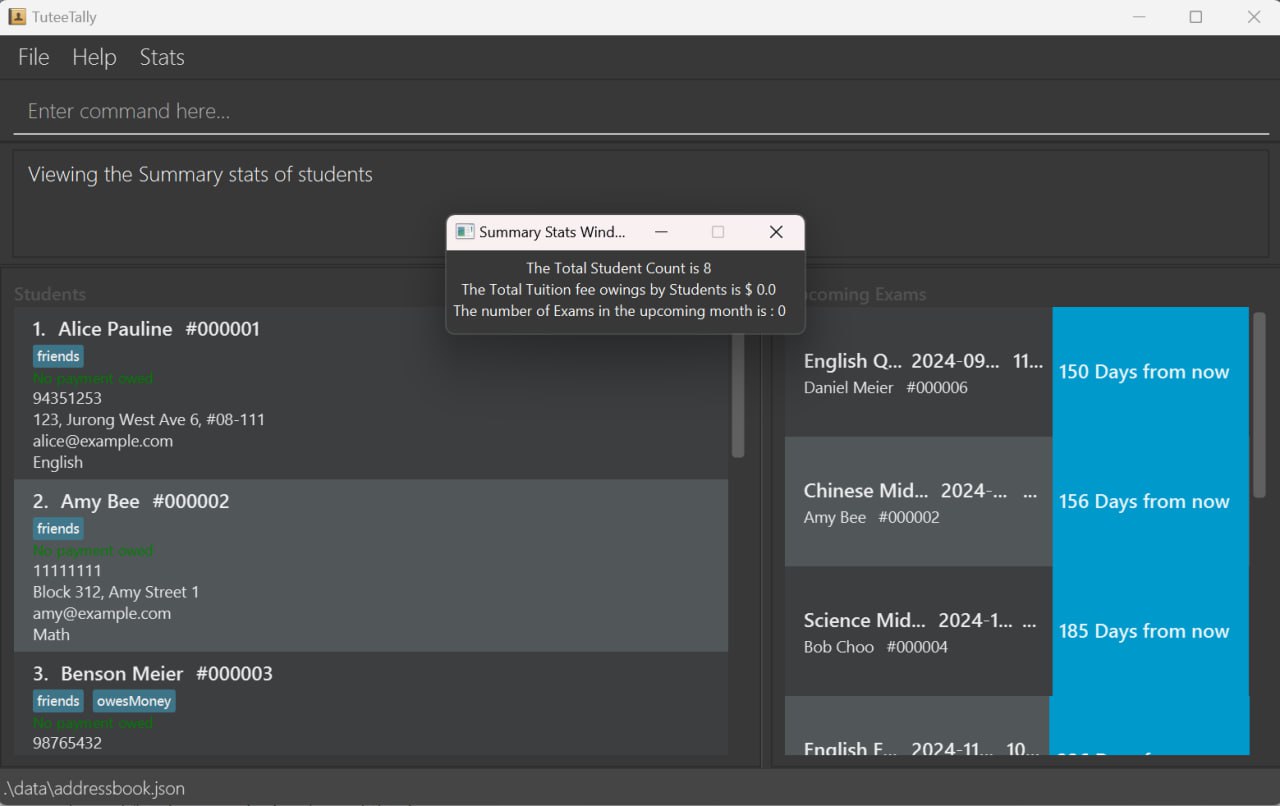 The display showing the stats of ALL the students.
View full student list on the home page: view -all
This would display all students currently added to the list. Each student's contact information and subject information will be displayed with this command.
Format: view -all
After entering the command, the interface will update as shown below:
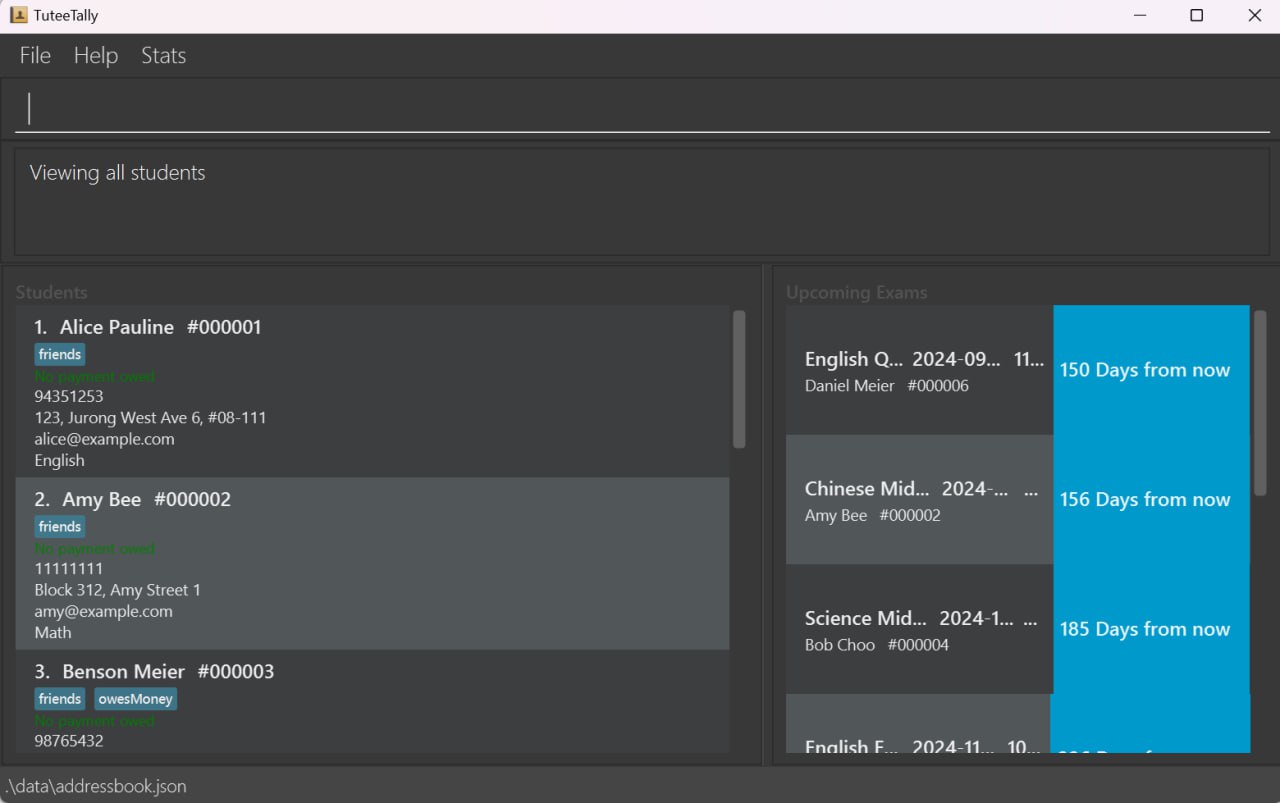 The display showing ALL the students.
View student particular by name: view -name
This will display students whose name matches any single word in the {NAME} search field.
- i.e.
view -name alex tanwill retrieve any student with the wordalexortanin their name.Alex YeoandJames Tanare both valid students to display in this case.
Format: view -name {NAME}
Example:
view -name Benson Meierwould display the student particular of Benson Meier if existed or any student with the wordBensonorMeierin their name.
After entering the command, the interface will update as shown below:
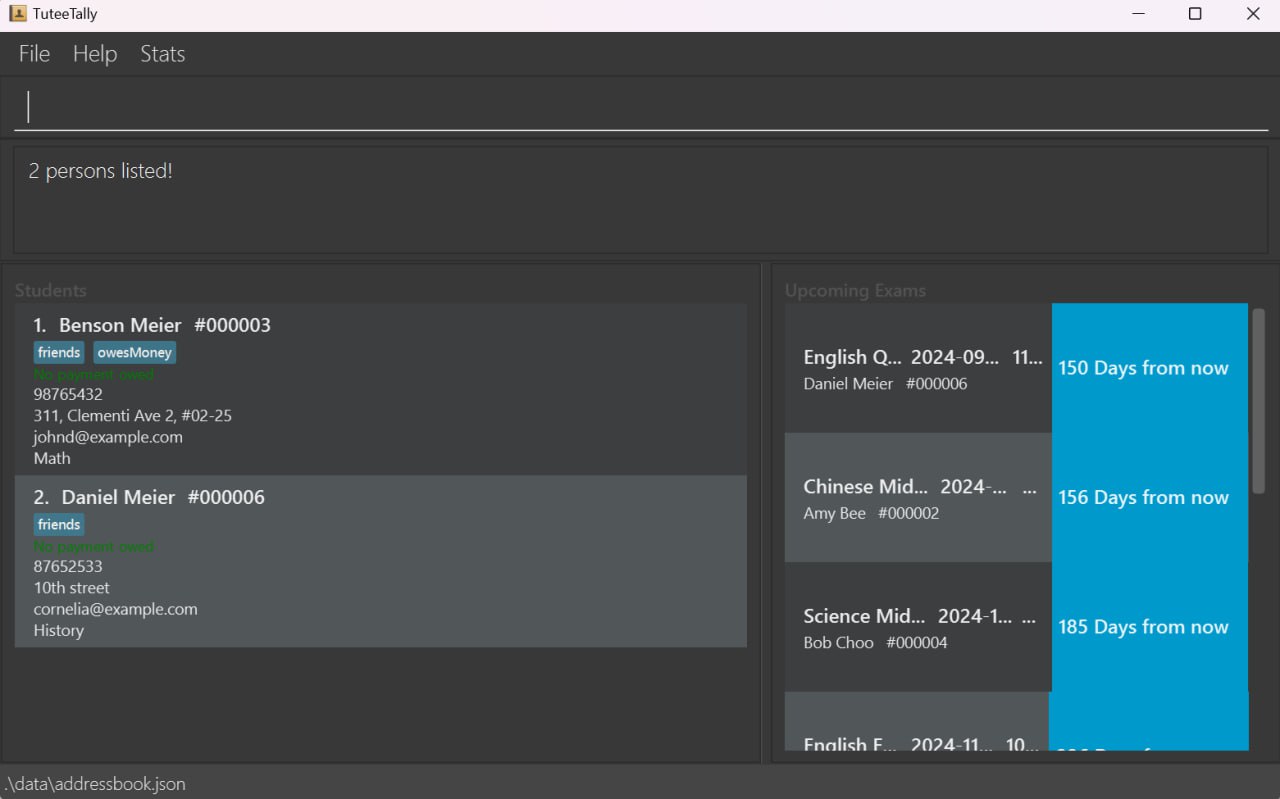 The display showing ALL the students with the word
 Benson or Meier in their name.
View student particular by ID: view -id
This will display a specific student by searching for their id, this also pops up the lesson logs of the student.
Format: view -id {ID}
Example:
view -id 000003would display the student particular for the student with ID #000003 if it exists.
After entering the command, the interface will update as shown below:
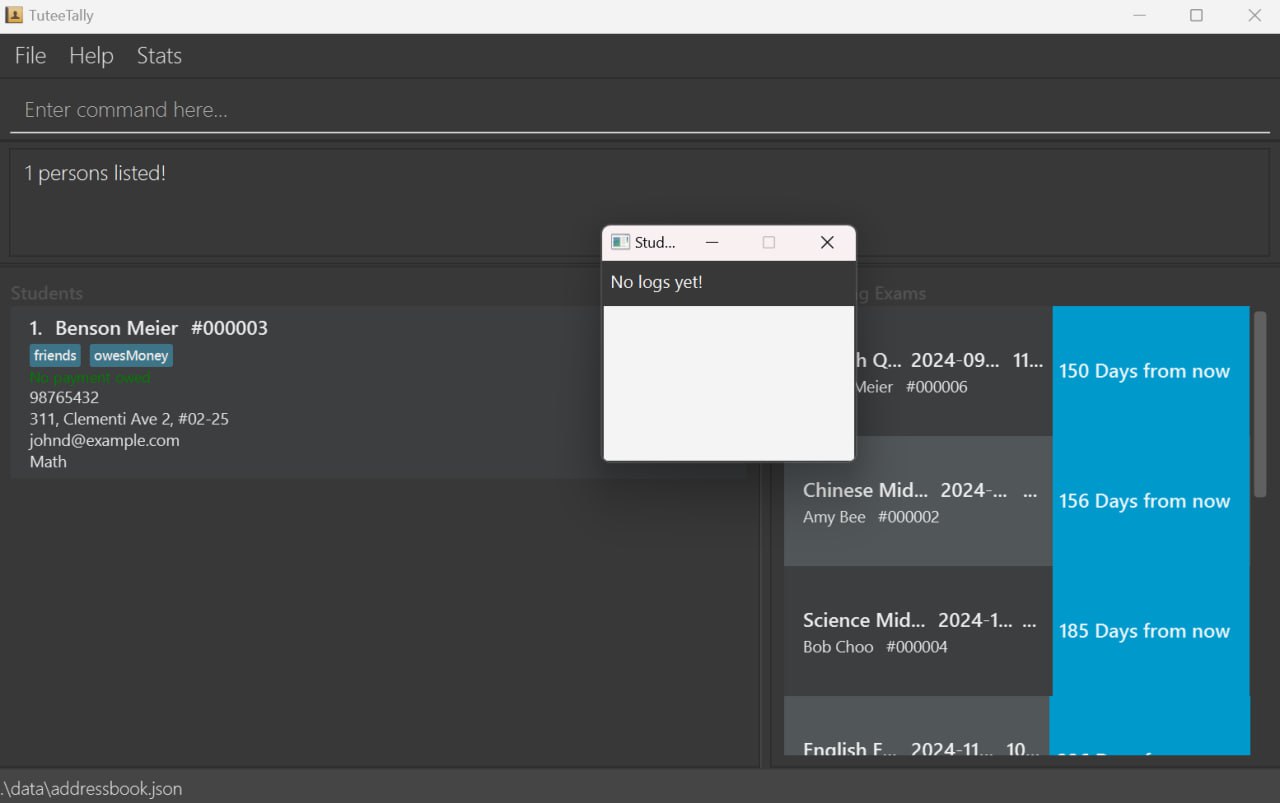 The display showing the student with the ID #000003.
Enhanced Payment Management
TuteeTally's payment management commands are designed to streamline the financial interactions between tutors and students, ensuring accuracy and transparency. Below are detailed explanations of each command's purpose and benefits:
Adding a Payment to students by ID: addpayment
Record new payments easily with the addpayment command, keeping track of what each student owes. This command simplifies the maintenance of financial records, ensuring you never overlook an outstanding payment.
Format: addpayment -id {ID} -payment {AMOUNT}
Example:
addpayment -id 000001 -payment 150oraddpayment -id 1 -payment 150would add a payment of 150 to the student with ID #000001 if it exists.
Note:
- If you add a payment of $0.00, there will be no changes to the display screen.
After entering the command, the interface will update as shown below:
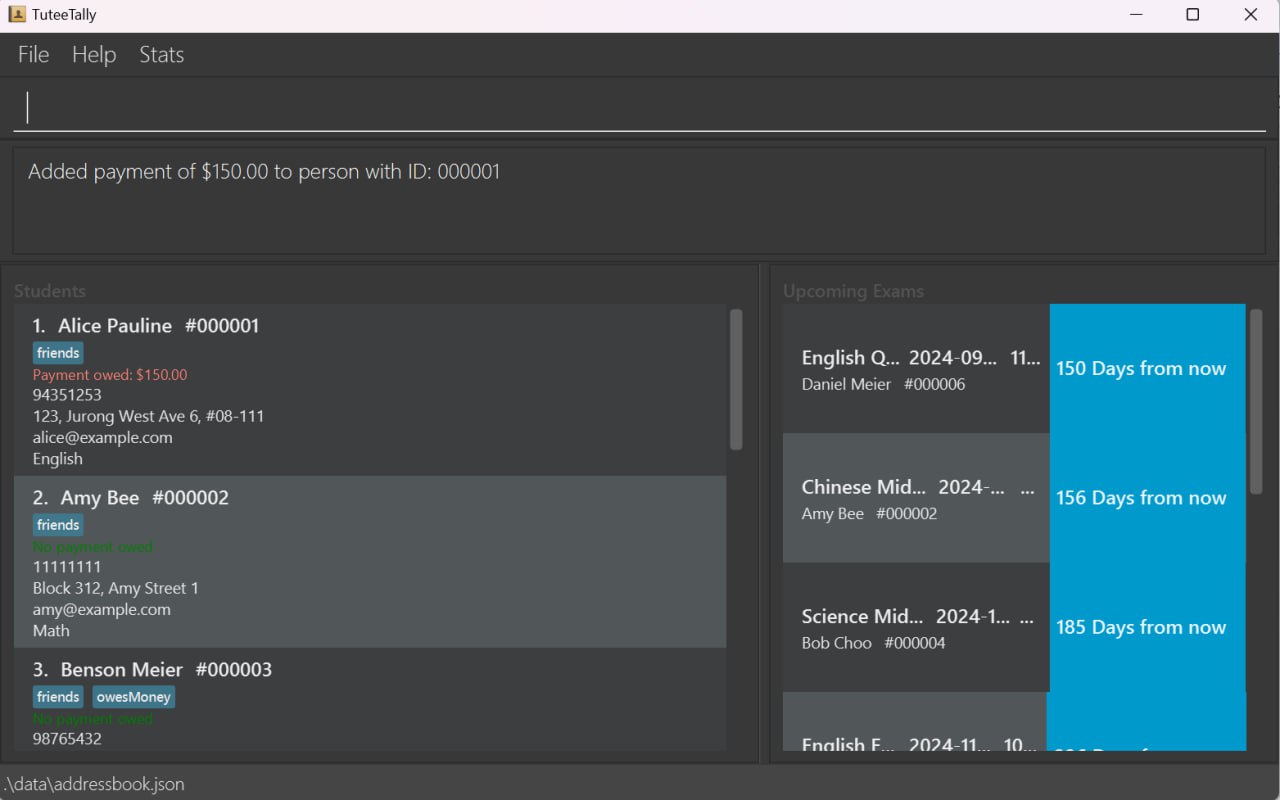 The display showing "Payment owed: $150.00" after adding a payment.
Marking Payment of students by ID: markpayment
The markpayment command allows you to update the status of a student's payment to reflect payments that have been made. This feature helps maintain a clear record of completed transactions, building trust and transparency.
Format: markpayment -id {ID} -payment {AMOUNT}
Example:
markpayment -id 000001 -payment 100ormarkpayment -id 1 -payment 100with ID #000001 if it exists.
After entering the command, the interface will update as shown below:
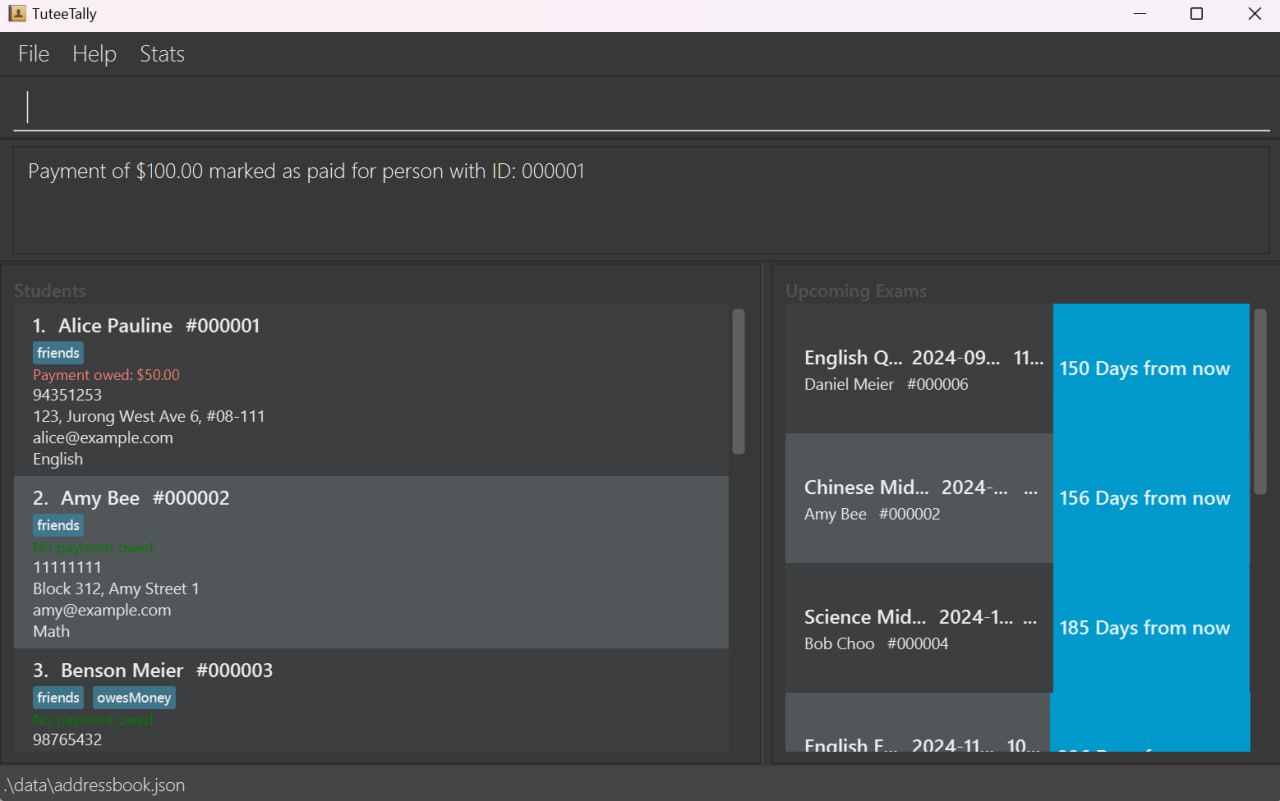 The display showing "Payment owed: $50.00" after marking a payment of $100.00, with $150.00 owed initially.
Note:
- If the amount marked as paid exceeds the total outstanding payment, the total outstanding payment will be set to 0.
Resetting all Payments of students by ID: resetpayments
For your information:
The command resetpayments intentionally includes an 's' after payment because it is designed to reset all owed payments for a student.
Use the resetpayments command to clear a student's outstanding payment amount, useful for starting anew or correcting mistakes. This command ensures your financial records remain accurate and up-to-date.
Format: resetpayments -id {ID}
Example:
resetpayments -id 000001orresetpayments -id 1would reset the payment for the student with ID #000001 if it exists.
After entering the command, the interface will update as shown below:
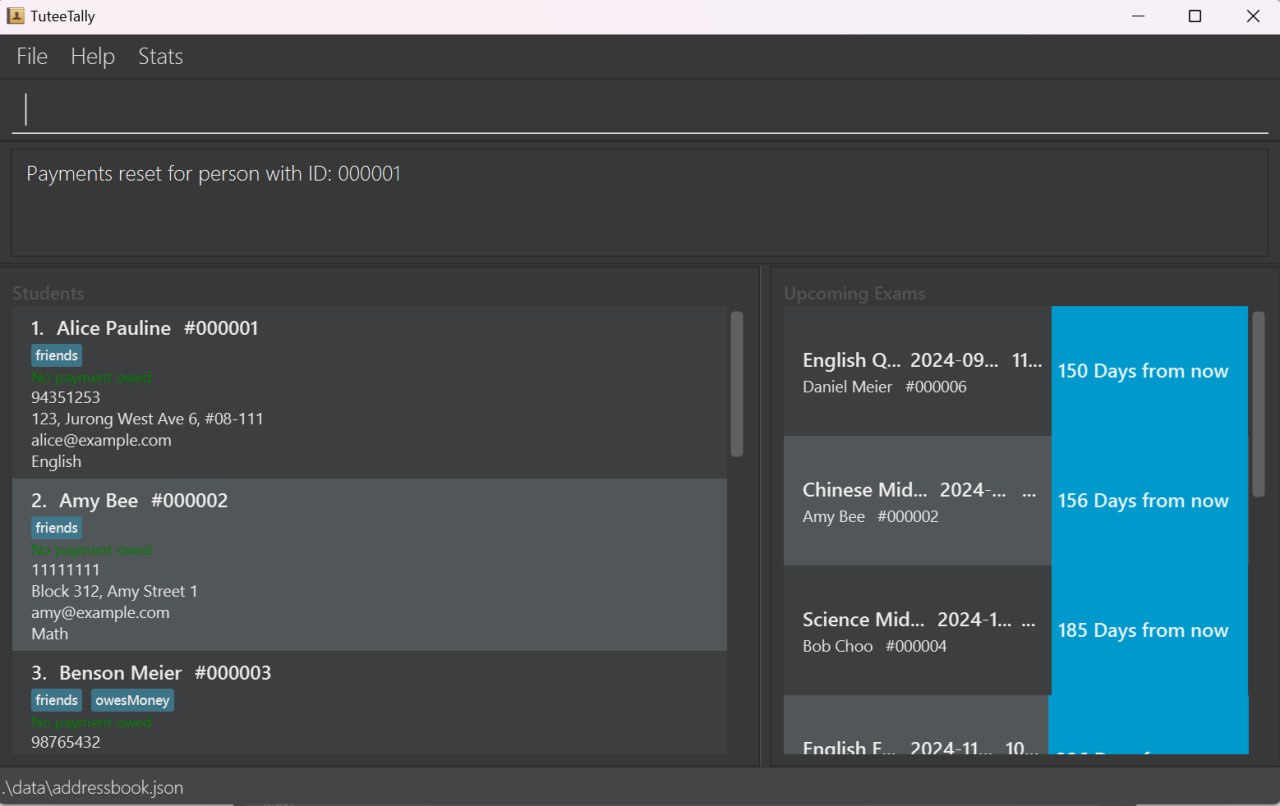 The display showing "No payment owed" after resetting payments, with $50.00 owed previously.
Each of these features contributes to a comprehensive financial management system within TuteeTally, enabling tutors to manage their tutoring finances more effectively and efficiently.
Add student's exam by ID: addexam
This will add an exam to a student by searching for their ID. Time is an optional field. Do note that only exams from the current date onwards can be added.
Format 1: addexam -id {ID} -exam {EXAMNAME} -date {DATE}
Format 2: addexam -id {ID} -exam {EXAMNAME} -date {DATE} -time {TIME}
Notes on the fields for addexam command:
| Field | Prefix | Required | Caveats |
|---|---|---|---|
| Unique ID | -id | Yes | Unique ID must be a positive integer with a maximum length of 6 digits excluding leading zeros. Leading zeros are optional. For example, 1, 01, and 000000001 are all valid representations for the ID #000001. IDs between 1 and 999999 (inclusive) are considered valid. |
| Exam | -exam | Yes | Exam should be a string, special characters are allowed. |
| Date | -date | Yes | Date inputs must be in the format yyyy-MM-dd format. Date must be from current date onwards. e.g. 2024-04-01 is a valid input for date, but not 2024-4-01 or 2024-04-1 |
| Time | -time | Nope | Time inputs are in the 24-hour format in the form HH:mm. e.g. 07:00 is a valid time input and refers to 7am, but not 7:00 |
Note:
- For this particular command, not leaving a space between prefix and input e.g.
addexam -id{ID} -exam{EXAMNAME} -date{DATE}is also accepted. GUI error message is the version without spaces between prefix and input.
Examples:
addexam -id 000001 -exam Computing -date 2024-04-27 -time 09:00would add an exam of Computing with date of 2024-04-27 and time of 09:00 to a student whose ID is #000001 if the student exists.
After entering the command, the interface will update as shown below:
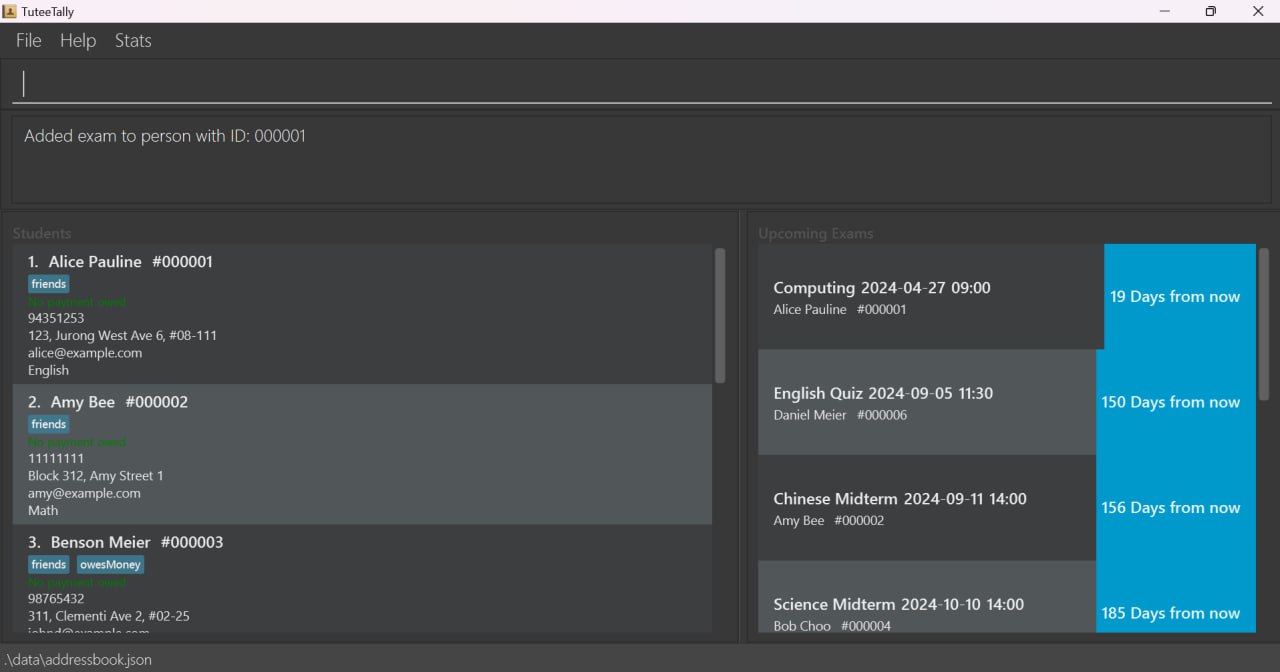 The display showing a new
 COMPUTING exam of the student with ID #000001 after being added.
Note:
- This feature allows users to add exams scheduled for earlier times on the current date, enabling accurate tracking of all exams occurring on the same day.
- If the entered date does not exist, such as February 31, the system will automatically adjust the date to the last valid day of the month. For example, "2028-02-31" will be changed to "2028-02-29" if it is a leap year, otherwise to "2028-02-28".
Delete student's exam by ID: deleteexam
This will delete an exam from a student by searching for their ID. Fields should follow exactly from the exam from the exam list that you wish to delete.
Format 1: deleteexam -id {ID} -exam {EXAMNAME} -date {DATE}
Format 2: deleteexam -id {ID} -exam {EXAMNAME} -date {DATE} -time {TIME}
For this particular command, not leaving a space between prefix and input e.g. deleteexam -id{ID} -exam{EXAMNAME} -date{DATE} is also accepted. GUI error message is the version without spaces between prefix and input.
Examples:
deleteexam -id 000001 -exam Computing -date 2024-04-27 -time 09:00would delete an exam of Computing with date of 2024-04-27 and time of 09:00 from a student whose ID is #000001 if the student exists.
After entering the command, the interface will update as shown below:
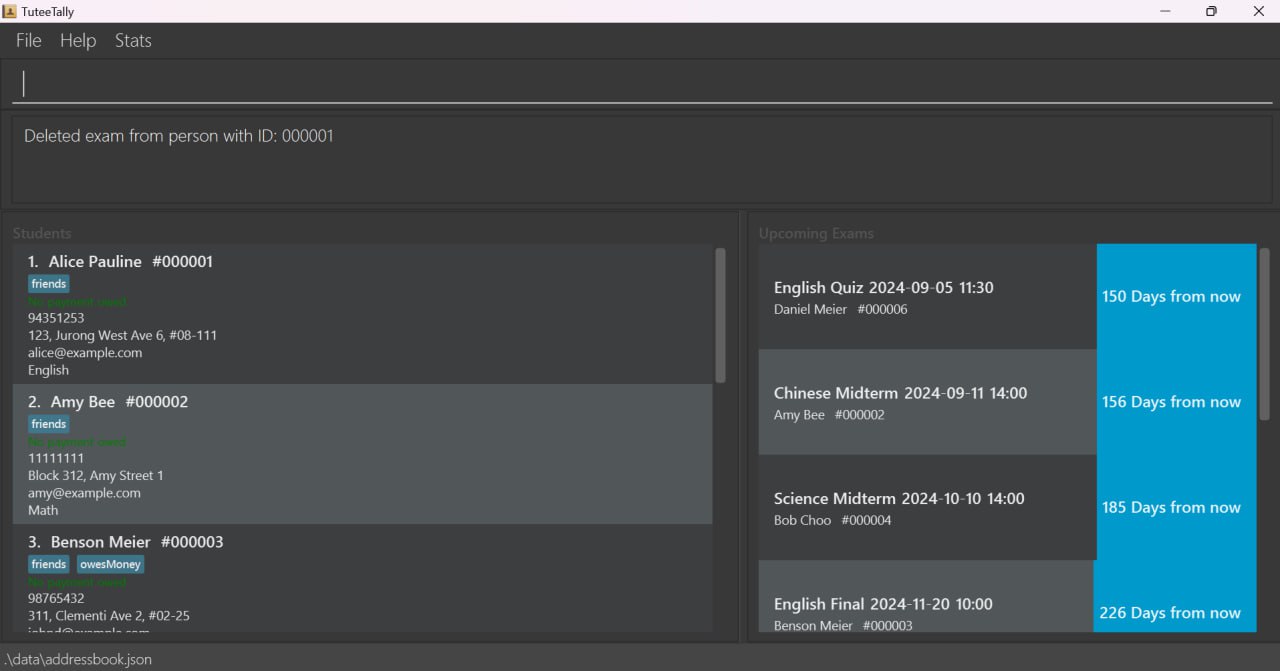 The display, after the COMPUTING exam for the student with ID #000001 has been deleted, shows the updated status, confirming the successful removal of the exam.
Note:
- Past exams specified below will be automatically removed when the user opens TuteeTally at the current date to streamline exam management by Tutors.
- Exam of past date and past time
- Exam of past date
- Exam of current date and past time
- To update the change to storage, user should use the command
exitto exit the app.
Logging the lessons of a student by ID: log
This will add a log to the lessons of a student. The time field of the log entry will be the system time when the log was added.
Format: log -id {ID} -hours {HOURS} -content {CONTENT} -style {LEARNING STYLE} -notes {NOTES}
Notes on Fields for log command
| Field | Prefix | Required | Caveats |
|---|---|---|---|
| Unique ID | -id | Yes | Unique ID must be a positive integer with a maximum length of 6 digits excluding leading zeros. Leading zeros are optional. For example, 1, 01, and 000000001 are all valid representations for the ID #000001. IDs between 1 and 999999 (inclusive) are considered valid. |
| Hours | -hours | Yes | Hours need not be an integer input to give you more flexibility. Values like 2 hours 45 mins, 2+ hours are valid as well. |
| Content | -content | Yes | Content should be a string, special characters are allowed. |
| Learning Style | -style | Yes | Learning style should be a string, special characters are allowed. |
| Notes | -notes | Yes | Notes should be a string, special characters are allowed. |
Note:
- Even though the prefixes are compulsory, their content can be left blank (except ID).
- Example:
log -id 000001 -hours -content -style -notesadds a log with blankhours,content,styleandnotesfield.
Example:
log -id 000001 -hours 2 -content English Comprehension -style Visual -notes Great improvement!would log a lesson for the student with ID #000001 noting that he/she has had a great improvement in English Comprehension, it also logs the learning style of the student.
After entering the command, the interface will update as shown below:
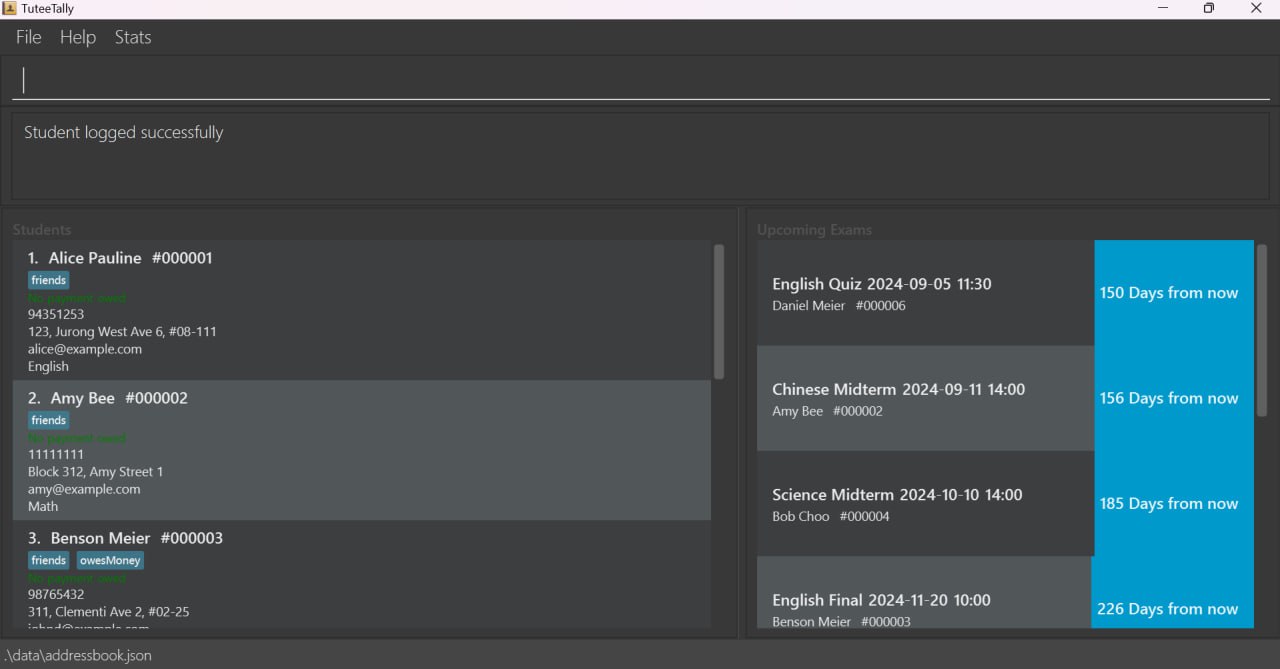 The display reflects the successful logging for the student with ID #000001.
Tip:
- After successful addition, you can check your updated log list using the
view -id {ID}command! - Do remember to close the tab before you add or view a different student's logs. This will ensure the log tab refreshes properly.
After entering the view -id 000001 command, the interface will update as shown below:
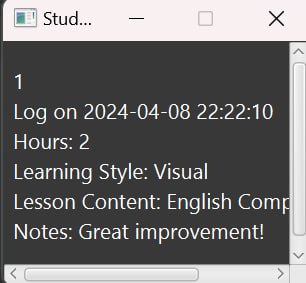
The display reflects the updated log entries for the student with ID #000001.
Editing the data file
TuteeTally's data is saved automatically as a JSON file at [JAR file location]/data/tuteetally.json. Do proceed carefully if you intend to edit this file directly.
- Certain edits can cause the TuteeTally to behave in unexpected and magical ways (e.g., if a value entered is outside the acceptable range, or invalid characters are added).
- Therefore, edit the data file only if you are confident that you can update it correctly.
- It's up to you to ensure the validity of the data if you choose to edit it.
- Hence, it is recommended to make a backup of the file (by copying and pasting to another location) before editing it.
FAQ
Q: How do I transfer my data to another Computer?
A: Install the app on the other computer and overwrite the empty data file it creates with the tuteetally.json file that contains the data from your previous TuteeTally home folder.
Q: What are the system requirements for TuteeTally?
A: TuteeTally requires Java 11 or above to run. It is compatible with Windows, MacOS, and Linux operating systems.
Q: Can I back up my TuteeTally data?
A: Yes, it is recommended to regularly back up your tuteetally.json data file by copying it to a secure location. This ensures that your data can be restored in case of software or hardware issues.
Q: What are the common mistakes to avoid when using TuteeTally?
A: Common mistakes include inputting commands in the wrong format,in such instances you may reference either the error message or this User Guide on the correct format.
Q: How can I recover deleted student data?
A: Once student data is deleted, it cannot be recovered through the application. Regular backups of your data file are recommended to prevent loss of data.
Q: What happens if I encounter a bug?
A: You may report any bugs on our GitHub. If possible, do provide a detailed description of the problem, steps to reproduce it, and any screenshots.
Known issues
Multi-Screen Usage Issue: When transitioning from using multiple screens to only the primary screen, the application's GUI may appear off-screen if it was previously moved to a secondary display. To resolve this issue, delete the
preferences.jsonfile and restart the application.Payment Rounding Display: Payment amounts are displayed rounded to the nearest cent ($0.01). For example, an entry of
$0.001will be shown as$0.00. However, the application accurately tracks and records the exact amounts entered.Zero Balance Command Entry: If a student's balance is already $0, entering
markpaymentorresetpaymentscommand is permitted, but no changes will be made.Maximized View Anomaly: When the application is maximized, an empty white block may appear at the bottom of the screen.
Student Log Viewing: When a student with no logs is viewed, an empty white block is displayed.
Summary Stats Window Precision: The Summary Stats Window displays exact values with more than two decimal places. For example, a payment of
$100.50owed by students will be shown as$100.500000.Adding New Logs: If a previous log window for a student remains open and new logs are added, the log window must be reopened using the command
view -id {ID}to reflect the updates.Command Input Flexibility: Commands such as
addexamanddeleteexamaccept inputs both with and without spaces between the prefix and the input, e.g.,addexam -id{ID} -exam{EXAMNAME} -date{DATE}. However, the GUI error messages may incorrectly suggest that spaces are required. All commands, exceptview -name {NAME}, can be used flexibly with or without space between prefixes and inputs.
Command summary
| Action | Format, Examples |
|---|---|
| Add | add -name {NAME} -email {EMAIL} -phone {number} -address {ADDRESS} -subject {SUBJECT} t/{tag} e.g., add -name Xiao Ming -phone 88888888 -email xiaoming@gmail.com -address 13, Computing Dr, 117417 -subject Math |
| Delete | delete -id {ID}e.g., delete -id 000001 |
| Edit | edit {INDEX} -<Editable Fields> {Value} e.g., edit 1 -phone 91234567 -email johndoe@example.com -name John Doo |
| View | view [-statistics] [-all] [-id ID] [-name NAME] e.g., view -stats, view -all , view -id 000003, view -name Benson Meier |
| AddPayment | addpayment -id {ID} -payment {AMOUNT}e.g., addpayment -id 000001 -payment 100 |
| MarkPayment | markpayment -id {ID} -payment {AMOUNT}e.g., markpayment -id 000001 -payment 100 |
| ResetPayments | resetpayments -id {ID}e.g., resetpayments -id 000001 |
| AddExam | addexam -id {ID} -exam {EXAMNAME} -date {DATE} -time {TIME OPTIONAL} e.g., addexam -id 000001 -exam Computing -date 2024-04-27 -time 09:00 |
| DeleteExam | deleteexam -id {ID} -exam {EXAMNAME} -date {DATE} -time {TIME} or deleteexam -id {ID} -exam {EXAMNAME} -date {DATE} e.g., deleteexam -id 000001 -exam Computing -date 2024-04-27 -time 09:00 |
| Log | log -id {ID} -hours {HOURS} -content {CONTENT} -style {LEARNING STYLE} -notes {NOTES} e.g., log -id 000001 -hours 2 -content English Comprehension -style Visual -notes Great improvement! |